A WhatsApp invoice isn’t finished when the file is sent. Your customer also needs to know what they owe and how to pay. If you send invoices on WhatsApp after a long day of customer work, a clear message and an obvious payment step can save time and prevent avoidable back-and-forth.
WhatsApp is a familiar way to reach many customers. The challenge is preparing the invoice, deciding whether to send a file, a link or both, and following up without losing track of the admin. This guide takes you through each step, from checking the invoice to sending it with a concise message and following up if payment hasn’t arrived.
WaPay connects invoicing with getting paid. Create an invoice from a text message or voice note, then send a payment link with options including bank transfer, card, Apple Pay or Google Pay. Customer payments go directly to your business bank account. WaPay works through WhatsApp or its WebApp, with no subscription or app to download, bringing more of your admin into the conversations you already manage.
Key Takeaways
- Use WhatsApp to share an invoice in the conversation where you agreed the work, so the handover is clear for you and your customer.
- Before you send invoices on WhatsApp, check the customer details, invoice information and intended recipient.
- Choose between sharing an invoice you’ve already prepared and using a workflow that creates and sends it. Decide how you’ll keep a record either way.
- Send the invoice with a clear payment next step, then check separately whether the customer has paid.
- Explore how WaPay connects invoice creation and payment options through WhatsApp or its WebApp.
Table of Contents
Send invoices on WhatsApp: when it helps a small business
A WhatsApp invoice is an invoice shared with a customer in a WhatsApp conversation. The invoice remains the business record of the work, amount due and payment terms. WhatsApp is simply the delivery channel, much like email or post. Keeping that distinction clear helps you choose a convenient way to send an invoice without mistaking a chat message for the invoice itself.
For sole traders and small businesses working on the move, sending an invoice by phone can fit more easily into the working day than waiting until you’re back at a desk. You might finish a repair, complete a cleaning job or deliver an order, then share the prepared invoice in the conversation where you’ve been discussing the work. That keeps the handover close to the job and makes it easier to deal with the admin while the details are fresh.
When does sending an invoice through WhatsApp make sense?
It makes practical sense when you and the customer already use WhatsApp to arrange a booking, confirm the work or share updates. A short message can explain why the invoice is arriving, while the attached file or link gives the customer the details to review. This can suit an independent tradesperson finishing a call-out or a small business delivering a booked service.
Timing matters. Preparing and sending the invoice after the job means you can use the agreed service details while they’re fresh. Leave it too long and you may have to reconstruct what was done, which parts were supplied or what you agreed with the customer. A simple routine helps: finish the work, prepare the invoice, then send it through the channel already in use.
WhatsApp may be less useful if the customer hasn’t agreed to communicate there or if the conversation would be difficult to identify later. Use a clear, professional message and make sure the invoice reaches the intended person. The Mobile Payment Overview explains the broader idea of using mobile devices in payment activity. Sending an invoice by chat is the delivery step, not proof that a payment has taken place.
What should an invoice message achieve?
Keep the note short and purposeful. Name the work or booking so the customer can connect the invoice to the right job. Then make the next action easy to spot, such as opening the attached invoice or using the payment link. Avoid burying that instruction in a long explanation or unrelated updates.
For example: “Thanks for choosing us for the repair. I’ve attached your invoice for the completed work. Please use the payment details on the invoice, and let me know if you need anything clarified.” Adjust the wording to match the payment step you’re providing.
Sending an invoice confirms delivery, not payment. Check separately that the money has arrived. A sent message or attachment doesn’t show that the customer has paid. Treat delivery and payment as two separate steps, and keep the conversation clear so you can follow up if needed.
Prepare the invoice and customer details before sending
A quick check before sending can prevent an invoice with the wrong name, a broken link or a message going to the wrong conversation. Keep the invoice and recipient details together, especially if you’re preparing it between jobs. A tidy invoice helps the customer see what the charge relates to and what to do next.
Check the invoice is ready to share
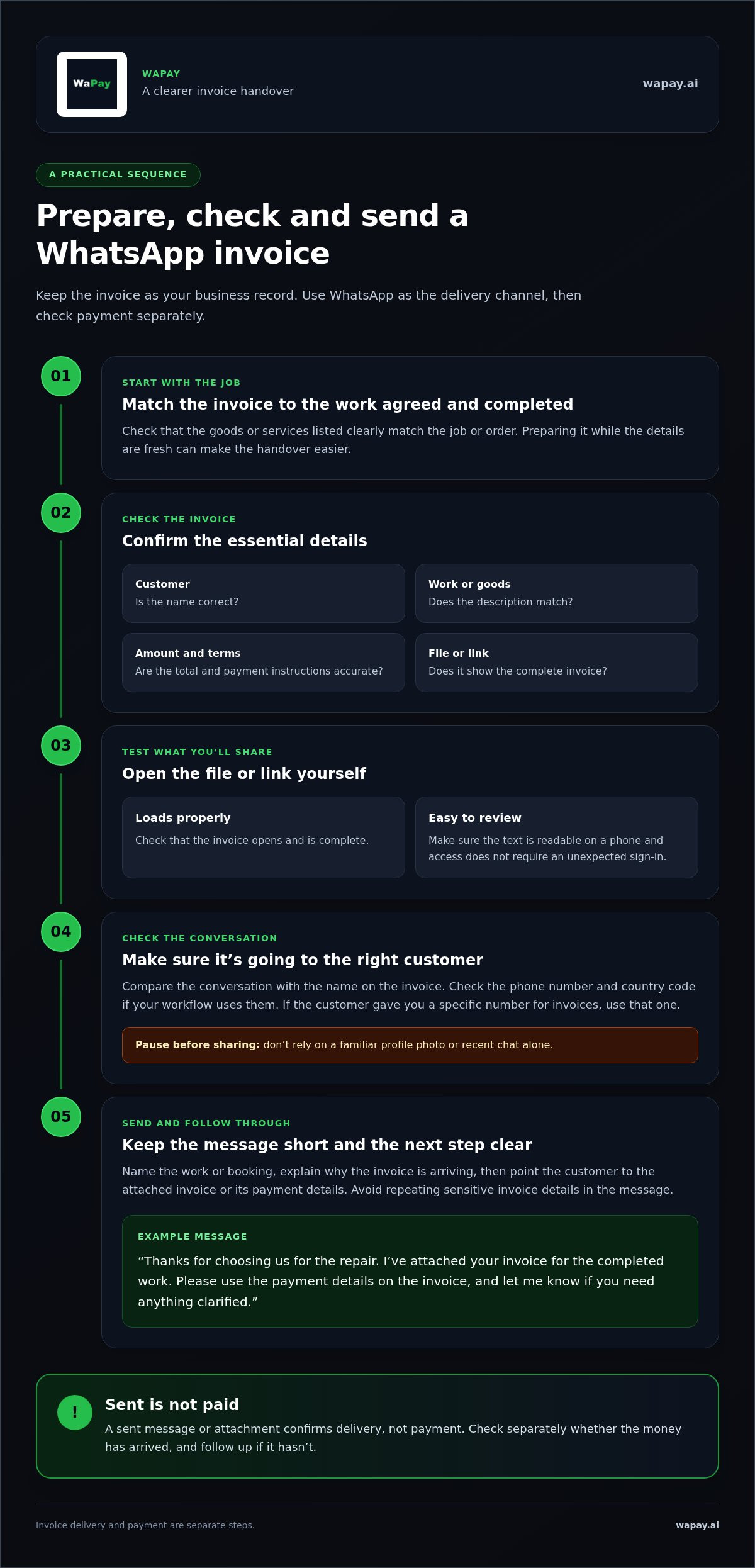
Compare the invoice with the work you agreed and completed. Check the customer’s name, the goods or services supplied, the amount and the payment terms. Then open the file or link yourself. Confirm that it loads, the text is readable on a phone and the customer can access it without an unexpected sign-in step.
- Customer identity: Is the name on the invoice correct?
- Work or goods: Does the description clearly match the job or order?
- Amount and terms: Are the total and payment instructions accurate?
- File or link: Does it open properly and show the complete invoice?
This is a practical readiness check, not a guide to Irish VAT rules or statutory invoice requirements. Keep those details in line with your own invoicing process and use dedicated VAT guidance for questions about VAT. A clear layout and a specific description still make the invoice easier for a customer to recognise and review.
Check the WhatsApp recipient and message
Before attaching or sharing anything, confirm that the conversation belongs to the customer named on the invoice. Check the phone number and country code if your invoicing workflow uses them. This matters if you’ve saved more than one contact with a similar name or are sending an invoice to a customer with an international number.
Pause at the conversation header and compare the recipient with the invoice. Don’t rely on a familiar profile photo or a recent chat alone. If the customer has given you a specific number for invoices, use that contact rather than guessing which conversation is theirs.
Keep the accompanying note brief and useful. Identify the invoice and the work it covers, then state the next step clearly. For example: “Hi Aoife, here’s the invoice for the completed garden maintenance. Please use the payment details on the invoice.” Avoid adding sensitive invoice details to the message when they’re already clearly shown on the invoice.
Once these checks are part of your routine, you can send invoices on WhatsApp with fewer last-minute checks and avoidable corrections. If you want to bring invoice preparation and sending into one mobile workflow, explore the WaPay invoice workflow.
Choose a WhatsApp invoice workflow that fits your business
There are two useful ways to send invoices through WhatsApp. You can prepare an invoice using your existing process, then share it in the customer’s chat. Or you can use a connected workflow that brings invoice creation and the payment step together. The right fit depends on how much administration you want to handle manually and how you already keep track of work.
Manual sharing versus a connected workflow
Manual sharing starts with an invoice you’ve already created. Open the file or invoicing service, select its WhatsApp sharing option or attach it to a message, then add a short note for the customer. This method can work well with your existing invoice records, provided you keep them organised and update payment status as part of your routine.
A connected workflow brings more of the process into one place. You may be able to create the invoice, share it and provide a payment step as part of the same sequence. This can reduce the need to move between separate tasks. Compare what the workflow actually handles rather than assuming all connected options work in the same way.
Manual sharing
Setup: Use your existing invoice process and WhatsApp sharing option.
Invoice creation: Prepare the invoice before opening the customer conversation.
Payment next step: Include the payment instructions or link you already use.
Record-keeping: Maintain your usual invoice records and update payment status.
Connected workflow
Setup: Use a workflow that brings invoice tasks together.
Invoice creation: Create the invoice within that workflow.
Payment next step: Give the customer a clear way to act on the invoice.
Record-keeping: Check which invoice, VAT record and payment-status details the workflow keeps.
What to compare before settling on a process
Start with where you do your work. If you’re happy preparing invoices separately, manual sharing may fit neatly into your current routine. If you’d rather create invoices from the same place you manage customer messages, choose a workflow that supports that. WaPay lets businesses create invoices from text messages or voice notes through WhatsApp or its WebApp.
Next, consider the customer’s experience. Can they recognise what the invoice covers? Is the payment action easy to find? Then think about your own follow-through: where will you see which invoices you’ve sent, whether VAT records are kept and whether payment has been received? A manual process can cover these needs too, if you reliably update your records.
Choose a level of support that matches your workload. If sending an occasional invoice is straightforward, keep the process simple. If invoice creation, payment instructions and record updates feel scattered, a connected option may bring those steps closer together. The aim is a clear route from prepared invoice to customer action, with a way to track what happens next.
Send the invoice and follow through: a practical checklist
A consistent sending routine makes it easier to see what’s been sent and what still needs attention. Whether you share a prepared file or a payment link, check the recipient, confirm the invoice is final, then update your own records. Sending the message is one step. Confirming payment is another.
A simple sequence for sending an invoice
Use this sequence with the invoicing process you already rely on. The labels and buttons may differ, but the checks stay the same.
- Open or create the final invoice. Check the customer, work description, amount and payment terms. Make sure you’re sharing the final version, not a draft or an earlier copy.
- Choose the customer’s WhatsApp conversation. Match the contact to the invoice. If you’re using a payment link, make sure it relates to the correct invoice.
- Attach the invoice or add the link. Use the available sharing option, then include a short note identifying the work and the next action for the customer.
- Review before sending. Check the recipient, attachment or link, and message together. Correct any mismatch before you send.
- Send, then record the status. Note the date sent and customer in your chosen records. Mark it as sent, not paid.
This final pause is useful when you’re moving between jobs or replying to several customers. It gives you a chance to catch a wrong conversation before invoice details leave your hands.
What to do after the message is sent
Keep a simple record of which invoice went to which customer and when. Use your existing records, spreadsheet or invoicing workflow to track outstanding invoices. If your process shows message delivery or viewing, treat those as communication details, not evidence that money has been received.
Sent means the invoice was shared, viewed means it was opened, and paid means you’ve confirmed the money has arrived. These are different states. Check payment through your usual records before marking an invoice as settled.
If payment remains outstanding, follow up politely and refer to the invoice so the customer can find it easily. Keep the tone straightforward: “Hi, I’m following up on the invoice for the completed work. Could you let me know if you need any details to arrange payment?” Use the payment terms you agreed with the customer to guide when you follow up. Don’t assume that a viewed message means the invoice has been dealt with.
WaPay brings invoice creation, payment links and follow-up records together. Explore WaPay for WhatsApp invoicing. Create invoices from text messages or voice notes through WhatsApp or the WebApp, and keep invoice and payment administration closer to the customer conversation.
How WaPay brings WhatsApp invoicing and payments together
Once your invoice details are ready and you’ve settled on a sending routine, WaPay brings invoice creation and the payment next step into one workflow. It’s designed for small businesses in Ireland that want to manage administration through WhatsApp or the WebApp, with no app to download or subscription.
From a message to an invoice and payment request
Send WaPay the invoice information in a text message or voice note. Use the details you’ve gathered about the customer and the work, then create the invoice through WhatsApp or the WebApp. This can suit a business owner finishing a job on the move, when it’s easier to send the key details as a quick message than to re-enter them later.
Once the invoice is ready, send the customer a payment link so the next step is clear. Customers can pay by bank transfer, card, Apple Pay or Google Pay. Offering these payment methods gives the customer a clear way to act on the invoice while keeping the request connected to the work you’ve completed. Payments go directly to your business bank account. Payment timing can depend on the method, so track payment status separately from the message you sent.
The aim is to connect two parts of the job: preparing a clear invoice and giving the customer a practical way to pay. WaPay can help you send invoices on WhatsApp without treating the chat as the invoice record or assuming a sent link means payment is complete.
Keep business administration visible after sending
Sending is only one part of the routine. WaPay includes payment reminders, VAT records and a live business dashboard, giving you ways to keep an eye on invoice-related administration after the customer receives the request. These tools can help you follow outstanding payments and relevant records as part of your day-to-day business process.
VAT records can support your record-keeping, but they don’t replace your responsibility to handle VAT correctly or provide tax advice. Use the records alongside your existing business processes. When a customer pays, confirm the payment through your records before treating the invoice as settled.
With no subscription or app to download, WaPay connects invoice creation, payment links and routine follow-up through WhatsApp or its WebApp. See how WaPay handles invoices and payments.
Make your next invoice easier to manage
Choose one small change for your next customer invoice: keep the details, delivery and payment step moving through a workflow that suits the way you work. A steady process makes it easier to pick up where you left off after a busy day, rather than leaving every invoice until later.
WaPay lets you create invoices from text messages or voice notes, then give customers a payment link with options including bank transfer, card, Apple Pay or Google Pay. There’s no subscription or app to download. It brings invoicing and customer payments closer to the conversations you already manage.
Put that workflow to work in your business. See how WaPay can simplify invoices and customer payments. Start with your next invoice and build a routine that helps you finish the admin with more confidence.
Frequently Asked Questions
Can I send an invoice through WhatsApp as a PDF?
Yes. Many invoicing workflows let you share a PDF invoice through WhatsApp. Before sharing, open the PDF on your phone and check that it’s the final version and readable on a small screen. Use a message that identifies the job, such as “Invoice for the boiler repair”, and keep your own record of the invoice and its status.
Does a customer need to download an app to receive an invoice on WhatsApp?
Not necessarily. A customer can receive an invoice in a WhatsApp conversation, but opening the invoice or completing payment depends on its format and the payment option provided. Businesses using WaPay don’t need to download an app. Make the message clear about what the customer should open or do next. If you share a link, briefly explain where it leads.
Is an invoice sent by WhatsApp a valid VAT invoice in Ireland?
Sending an invoice through WhatsApp doesn’t by itself determine whether it meets the VAT requirements that apply to your business and transaction. The invoice still needs to comply with the relevant rules, whatever channel you use to deliver it. For specific requirements, refer to current Irish Revenue guidance or seek professional tax advice. This article covers the sending process, not individual VAT advice or tax filing.
Can customers pay a WhatsApp invoice using Apple Pay or Google Pay?
That depends on the payment workflow attached to the invoice. WaPay enables businesses to accept customer payments by bank transfer, card, Apple Pay or Google Pay. Make the available payment options clear so the customer can choose a suitable method. Payment timing can vary by method and processing, so don’t describe any option as instant or mark an invoice paid until you’ve confirmed receipt.
How do I know whether a WhatsApp invoice has been paid?
A message being sent or viewed doesn’t confirm that the invoice has been paid. Check your business payment records and update the invoice status once receipt is recorded. WaPay’s live business dashboard can help you review payment information alongside your administration. If a customer says they’ve paid but you can’t see the payment yet, keep the invoice outstanding until you can verify it in your records.
Can I create an invoice from a WhatsApp voice note?
Yes. WaPay lets businesses create invoices from voice notes or text messages through WhatsApp or its WebApp. A voice note can help capture job details while they’re fresh, such as the work completed or materials supplied. Review the invoice carefully before sharing it, particularly the customer and amount. Then send invoices on WhatsApp with a clear payment next step so the customer knows what to do.
Frequently asked questions
When does sending an invoice through WhatsApp make sense?
It makes practical sense when you and the customer already use WhatsApp to arrange a booking, confirm the work or share updates. A short message can explain why the invoice is arriving, while the attached file or link gives the customer the details to review. This can suit an independent tradesperson finishing a call-out or a small business delivering a booked service. Timing matters. Preparing and sending the invoice after the job means you can use the agreed service details while they’re fresh. Leave it too long and you may have to reconstruct what was done, which parts were supplied or what you agreed with the customer. A simple routine helps: finish the work, prepare the invoice, then send it through the channel already in use. WhatsApp may be less useful if the customer hasn’t agreed to communicate there or if the conversation would be difficult to identify later. Use a clear, professional message and make sure the invoice reaches the intended person. The Mobile Payment Overview explains the broader idea of using mobile devices in payment activity. Sending an invoice by chat is the delivery step, not proof that a payment has taken place.
What should an invoice message achieve?
Keep the note short and purposeful. Name the work or booking so the customer can connect the invoice to the right job. Then make the next action easy to spot, such as opening the attached invoice or using the payment link. Avoid burying that instruction in a long explanation or unrelated updates. For example: “Thanks for choosing us for the repair. I’ve attached your invoice for the completed work. Please use the payment details on the invoice, and let me know if you need anything clarified.” Adjust the wording to match the payment step you’re providing. Sending an invoice confirms delivery, not payment. Check separately that the money has arrived. A sent message or attachment doesn’t show that the customer has paid. Treat delivery and payment as two separate steps, and keep the conversation clear so you can follow up if needed. A quick check before sending can prevent an invoice with the wrong name, a broken link or a message going to the wrong conversation. Keep the invoice and recipient details together, especially if you’re preparing it between jobs. A tidy invoice helps the customer see what the charge relates to and what to do next.
Can I send an invoice through WhatsApp as a PDF?
Yes. Many invoicing workflows let you share a PDF invoice through WhatsApp. Before sharing, open the PDF on your phone and check that it’s the final version and readable on a small screen. Use a message that identifies the job, such as “Invoice for the boiler repair”, and keep your own record of the invoice and its status.
Does a customer need to download an app to receive an invoice on WhatsApp?
Not necessarily. A customer can receive an invoice in a WhatsApp conversation, but opening the invoice or completing payment depends on its format and the payment option provided. Businesses using WaPay don’t need to download an app. Make the message clear about what the customer should open or do next. If you share a link, briefly explain where it leads.
Is an invoice sent by WhatsApp a valid VAT invoice in Ireland?
Sending an invoice through WhatsApp doesn’t by itself determine whether it meets the VAT requirements that apply to your business and transaction. The invoice still needs to comply with the relevant rules, whatever channel you use to deliver it. For specific requirements, refer to current Irish Revenue guidance or seek professional tax advice. This article covers the sending process, not individual VAT advice or tax filing.
Can customers pay a WhatsApp invoice using Apple Pay or Google Pay?
That depends on the payment workflow attached to the invoice. WaPay enables businesses to accept customer payments by bank transfer, card, Apple Pay or Google Pay. Make the available payment options clear so the customer can choose a suitable method. Payment timing can vary by method and processing, so don’t describe any option as instant or mark an invoice paid until you’ve confirmed receipt.
How do I know whether a WhatsApp invoice has been paid?
A message being sent or viewed doesn’t confirm that the invoice has been paid. Check your business payment records and update the invoice status once receipt is recorded. WaPay’s live business dashboard can help you review payment information alongside your administration. If a customer says they’ve paid but you can’t see the payment yet, keep the invoice outstanding until you can verify it in your records.
Can I create an invoice from a WhatsApp voice note?
Yes. WaPay lets businesses create invoices from voice notes or text messages through WhatsApp or its WebApp. A voice note can help capture job details while they’re fresh, such as the work completed or materials supplied. Review the invoice carefully before sharing it, particularly the customer and amount. Then send invoices on WhatsApp with a clear payment next step so the customer knows what to do.