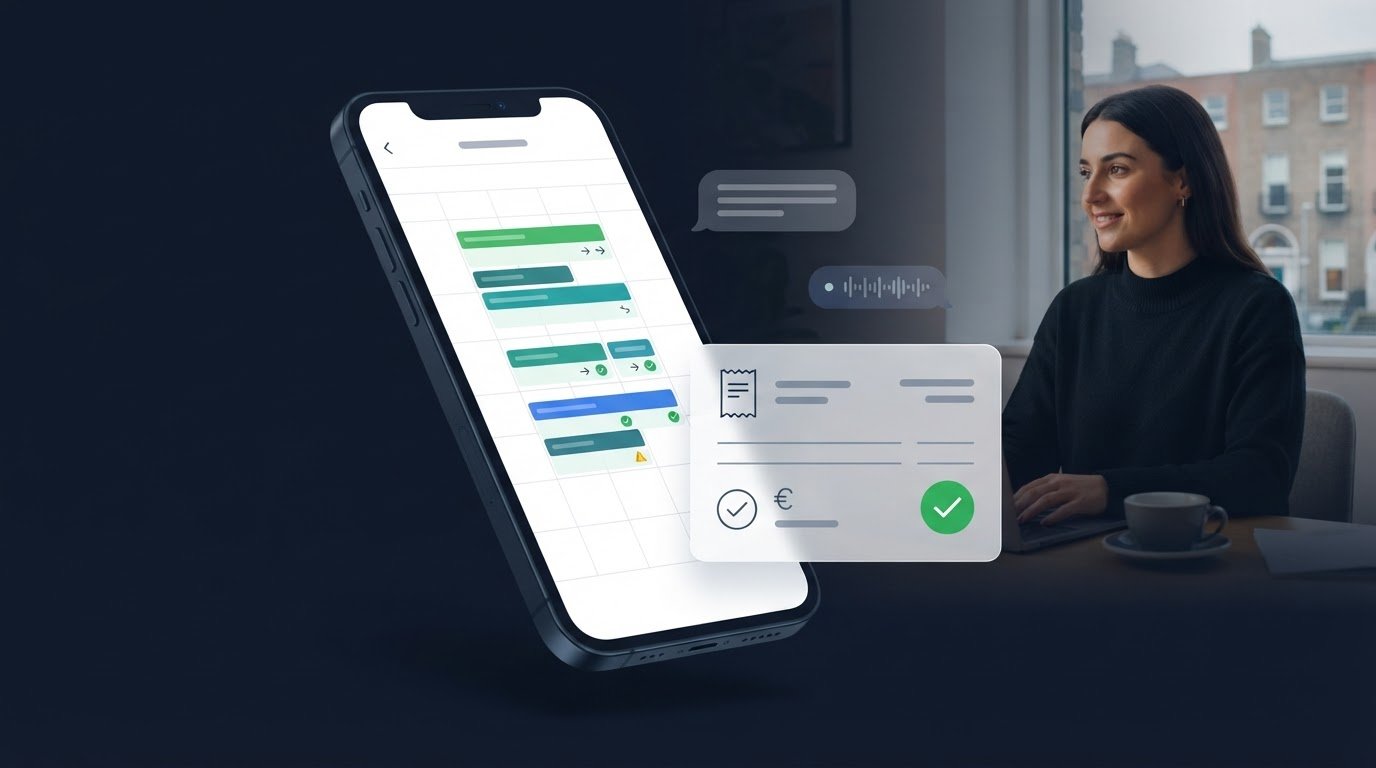
A booking works best when the date, time, service and assigned staff member are recorded together, then confirmed with the customer. To manage bookings and invoices, keep availability up to date, set recurring visits as a repeat schedule and create the invoice from the agreed work.
Appointment details can get scattered across messages, while paperwork waits until the end of the day. This guide explains how to schedule appointments, organise staff availability and recurring visits, and keep invoice details clear. You’ll also learn how invoice types differ and when to use a credit note, so completed work is easier to track and bill accurately.
Key Takeaways
- Use staff calendars to spot clashes early and keep appointment changes visible to everyone involved.
- Capture the customer, work completed and payment status clearly so invoice records are easier to follow.
- Choose the invoice type that suits the stage of the work, and use a credit note to correct or adjust an invoice.
- Bring bookings, invoices and payment tasks into a simpler workflow to reduce admin after appointments.
Table of Contents
Availability, staff calendars and recurring appointments
Start with a clear view of each staff member’s working hours, existing appointments and time off. Before confirming a visit, match the service to the right person and an available time slot. For example, a mobile cleaner can leave time to travel between customer addresses rather than booking jobs back-to-back. Update the calendar when shifts change so colleagues don’t offer a time that’s already taken.
Use a simple booking routine for every appointment:
- Record the customer’s name, contact details, service and agreed time.
- Assign the appointment to the staff member doing the work.
- Add the address, access notes or preparation details needed for the visit.
- Update or cancel the calendar entry as soon as plans change.
For repeat work, agree the pattern with the customer first. A weekly garden visit, for example, needs a recurring time that fits both the customer’s routine and the worker’s availability. Review the series when a public holiday, staff absence or customer request affects a visit. Change the affected appointment rather than relying on memory or leaving conflicting entries in separate calendars. A booking calendar for appointments can help keep visit details together.
Online bookings can create security risks. Unauthorised access may expose customer contact details or appointment addresses, and phishing messages can trick staff into sharing login credentials. Limit calendar access to people who need it, use strong, unique passwords and remove access when someone no longer handles bookings. Collect only the details needed to arrange and complete the visit.
For recurring visits paid by invoice, confirm the payment arrangement as part of the booking routine and keep payment details separate from calendar access. ACH invoice payments are available only for U.S. bank accounts. If a customer can’t use that option, agree another payment arrangement before confirming the series, and record only the information needed to manage the booking and payment.
Information shown on invoices
A clear invoice helps the customer match a charge to an appointment. For a home visit, describe the service and work completed. Include the appointment date and any agreed extra work. Choose a reference that will help you find the record later, then check the customer’s name and contact details before sending the invoice.
In Ireland, VAT treatment depends on the supplier’s VAT status and the service provided. Apply the relevant treatment, and show the VAT rate and amount where VAT is charged. Don’t assume every appointment has the same VAT treatment. Keep the invoice details consistent with the work actually completed.
Use this checklist when preparing an invoice:
- Your business name and contact details, plus the customer’s details.
- An invoice date and reference number.
- The service provided, appointment date and agreed additional work.
- Separate amounts for the work and any applicable VAT, followed by the total due.
- Payment instructions and the due date agreed with the customer.
For repeat customers, use clear descriptions across visits. “Garden maintenance” is easier to identify than “job” when reviewing invoices. Record any deposit or part-payment against the correct invoice so the balance due remains clear. If an appointment changes, update the relevant records to reflect the final work.
Software that helps you manage bookings and invoices can carry appointment details into invoicing, reducing duplicate entry. For example, add a plumbing visit’s booking reference and completed work description to its invoice. A connected workflow makes it easier to manage bookings and invoices while keeping each charge tied to the right appointment.
To bring booking and invoice admin into one workflow, start setting up your business admin.
Invoice types and credit notes
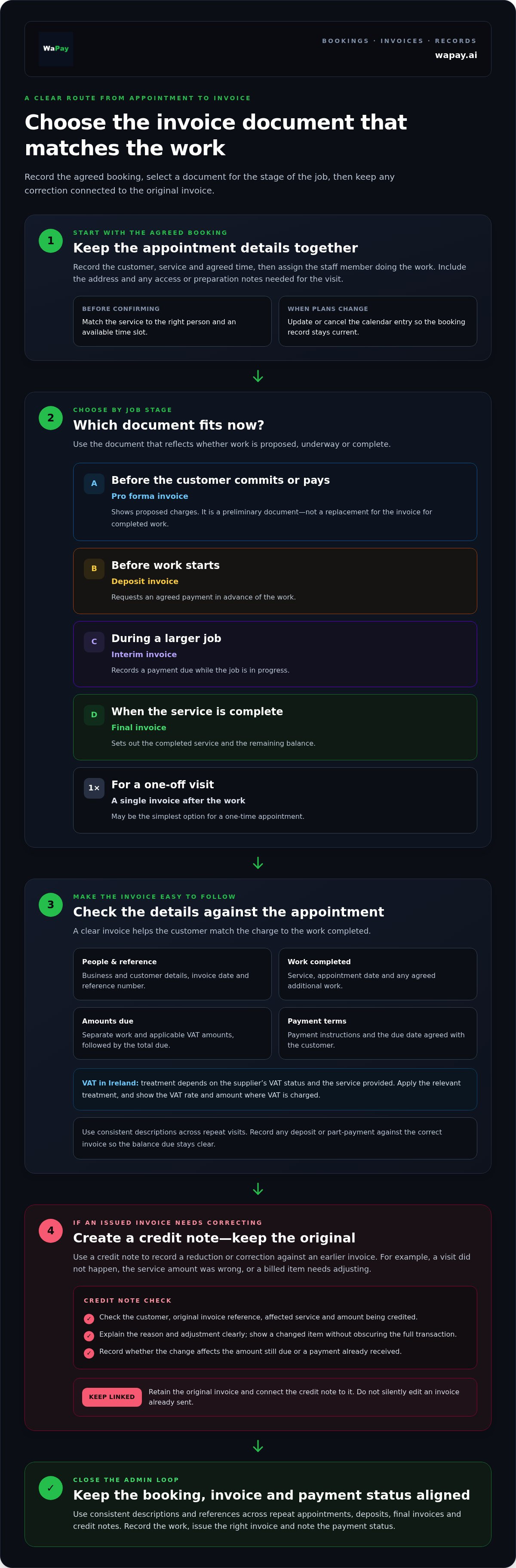
Choose the document that matches the stage of the appointment. A deposit invoice requests an agreed payment before work starts. An interim invoice records a payment due during a larger job. A final invoice sets out the completed service and remaining balance. For a one-off visit, a single invoice after the work may be simplest.
A pro forma invoice can show proposed charges before the customer commits or pays. Treat it as a preliminary document, not a replacement for the invoice for completed work. For example, a decorator can send a pro forma for a room refresh, then invoice the agreed work when it’s finished. Keep the customer details, service description and amounts consistent across both documents.
A credit note records a reduction or correction against an earlier invoice. Use one if you charged for a visit that didn’t happen, applied the wrong service amount or need to adjust a billed item. Don’t silently edit an invoice already sent. Keep the original invoice, link the credit note to it, and explain the reason and adjustment clearly.
Before issuing a credit note, compare it with the original record. Check the customer, invoice reference, affected service and amount being credited. If only one item changes, show that adjustment clearly rather than obscuring the full transaction. Record whether the change affects the amount still due or a payment already received. This gives you and the customer a clear record.
For repeat appointments, use consistent descriptions and references across deposits, final invoices and credit notes. This makes it easier to see which work has been billed, adjusted or remains unpaid.
WaPay: Payments
WaPay connects bookings, invoices and payments in one workflow. Use WhatsApp or the WebApp to create invoices and payment links from a voice note or text message. This can help you record a charge as soon as an appointment is complete, before the details slip your mind.
Payment reminders, VAT records and a live business dashboard help keep important admin visible. You can also manage bills alongside customer payments, for a clearer view of money due and business costs. Customer payments go directly to your business bank account.
Ready to bring appointment and payment admin together? Visit wapay.ai to explore WaPay.
Make admin part of the working day
Make each completed appointment the point where you close its admin loop. Record the work, issue the invoice and note the payment status before moving on. A steady routine keeps outstanding tasks visible and stops paperwork from spilling into your evening.
A practical way to manage bookings and invoices is to connect appointment records with payment follow-up. WaPay brings together Payments, Invoices and Bills, helping you keep customer charges and business costs in view alongside your day-to-day work. Use this joined-up approach when scattered notes make it harder to see what needs attention next.
Choose a routine that suits the way you work, then make it part of every appointment’s close-out. Small, consistent steps create a clearer handover from the day’s work to the admin that follows.
Take the next step towards a more organised working day.
Frequently Asked Questions
How do you set appointments?
To manage bookings and invoices, agree the service, time and customer details, then record them in a booking calendar. A calendar that helps you manage bookings and invoices can keep the appointment reference with the job record, making it easier to match completed work to the right charge. Confirm the appointment with the customer and update the entry if plans change.
Frequently asked questions
How do you set appointments?
To manage bookings and invoices, agree the service, time and customer details, then record them in a booking calendar. A calendar that helps you manage bookings and invoices can keep the appointment reference with the job record, making it easier to match completed work to the right charge. Confirm the appointment with the customer and update the entry if plans change.